> ## Documentation Index
> Fetch the complete documentation index at: https://docs-dev-fix-docs-5546-update-db-search.mintlify.site/llms.txt
> Use this file to discover all available pages before exploring further.
> Describes how Auth0 works with the Web Services Federation (WS-Fed) protocol.
# Web Services Federation Protocol
Web Services Federation (WS-Federation or WS-Fed) is part of the larger WS-Security framework and an extension to the functionality of WS-Trust. The features of WS-Federation can be used directly by SOAP applications and web services. WS-Fed is a protocol that can be used to negotiate the issuance of a token. You can use this protocol for your applications (such as a Windows Identity Foundation-based app) and for identity providers (such as Active Directory Federation Services or Azure AppFabric Access Control Service).
## For applications
When you register an application in Auth0, it will automatically be assigned a WS-Fed endpoint of the form:
`https://{yourDomain}/wsfed/{yourClientId}`
You can find all available options for configuring WS-Fed under the [advanced settings](https://manage.auth0.com/#/applications/\{yourClientId}/settings) area for your application.
You will need to configure the **Relying Party**, which can be done using the following metadata endpoint:
`https://{yourDomain}/wsfed/FederationMetadata/2007-06/FederationMetadata.xml`
You can also use the **samlConfiguration** object, available in [rules](/docs/customize/rules), to configure claims sent via the token, as well as other lower-level WS-Fed and SAML-P settings.
When redirecting your users to your WS-Fed endpoint, you can use the following (optional) parameters:
| Parameter | Description |
| ----------------------- | ---------------------------------------------------------------------------------------------------------- |
| `wa=wsignin1.0` | Whether Auth0 should issue a token for the relying party (default) |
| `wa=wsignout1.0` | Whether Auth0 should clear the user session/log the user out |
| `wreply={callback_URL}` | Where the response should be sent |
| `wctx={state}` | Your application's state |
| `whr={connection_name}` | Connection to be used (allows users to skip the Auth0 login page) |
| `wfresh=0` | Whether the user must re-authenticate, even if there's a session in place (`0` requires re-authentication) |
Here's a sample of what your URL with the optional parameters might look like:
`https://{yourDomain}/wsfed/{yourClientId}?whr=google-oauth2`
## Identity providers
If you're using Auth0 with an identity provider that uses the WS-Federation protocol (such as Active Directory Federation Services, Azure AppFabric Access Control Service, and IdentityServer), the easiest way to set up your integration is to create and use the ADFS connection type in the Dashboard. There are two ways to accomplish this:
* Import the Federation Metadata file
* Enable the Federation Metadata endpoint to check for changes
### Import Federation metadata file
When setting up an ADFS-based connection, you can import the required parameters by providing Auth0 with the Federation Metadata endpoint or by importing/uploading your federation metadata file.
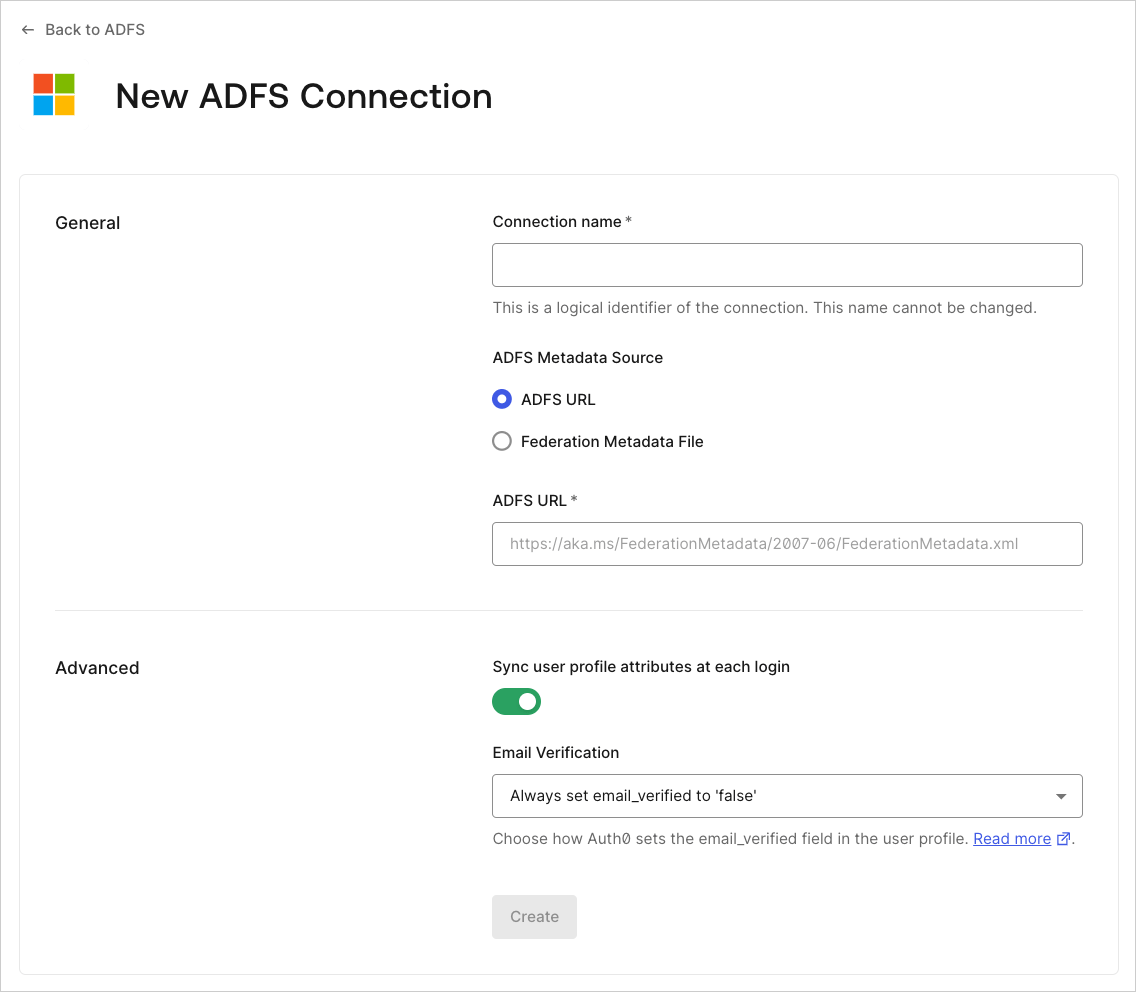 You will be presented with the instructions you need to finish configuring the integration.
### Enable the Federation Metadata endpoint
The federation metadata file contains information about the identity provider's certificates. If you provide the Federation Metadata endpoint (typically of the form ending with `/FederationMetadata/2007-06/FederationMetadata.xml`), Auth0 can check daily for changes in the configuration, such as the addition of a new signing certificate that was added in preparation for a rollover. Because of this, enabling the Federation Metadata endpoint is preferred to providing a standalone metadata file. If you provide a standalone metadata file, we will notify you via email when the certificates are close to their expiration date.
If the Federation Metadata contains both the primary and secondary certificates, you can use both in Auth0.
To roll over certificates using the Federation Metadata endpoint:
1. Generate a new certificate, and add it as the secondary certificate for your ADFS environment. This should be done at least **two days** before the expiration of your active primary certificate.
2. Allow Auth0 to obtain your new certificate from the Federation Metadata endpoint. Auth0 checks your endpoints once a day, so be sure to allow sufficient time for Auth0 to complete this step.
Alternatively, you can manually complete this step by logging in to the Auth0 Dashboard, navigating to the appropriate ADFS connection, and click **Save**. This action results in Auth0 downloading the certificates immediately.
3. Set the now-secondary certificate as the primary certificate before the existing primary certificate expires in your ADFS environment.
##
## Learn more
* [Configure WS-Fed Applications](/docs/get-started/applications/configure-ws-fed-applications)
You will be presented with the instructions you need to finish configuring the integration.
### Enable the Federation Metadata endpoint
The federation metadata file contains information about the identity provider's certificates. If you provide the Federation Metadata endpoint (typically of the form ending with `/FederationMetadata/2007-06/FederationMetadata.xml`), Auth0 can check daily for changes in the configuration, such as the addition of a new signing certificate that was added in preparation for a rollover. Because of this, enabling the Federation Metadata endpoint is preferred to providing a standalone metadata file. If you provide a standalone metadata file, we will notify you via email when the certificates are close to their expiration date.
If the Federation Metadata contains both the primary and secondary certificates, you can use both in Auth0.
To roll over certificates using the Federation Metadata endpoint:
1. Generate a new certificate, and add it as the secondary certificate for your ADFS environment. This should be done at least **two days** before the expiration of your active primary certificate.
2. Allow Auth0 to obtain your new certificate from the Federation Metadata endpoint. Auth0 checks your endpoints once a day, so be sure to allow sufficient time for Auth0 to complete this step.
Alternatively, you can manually complete this step by logging in to the Auth0 Dashboard, navigating to the appropriate ADFS connection, and click **Save**. This action results in Auth0 downloading the certificates immediately.
3. Set the now-secondary certificate as the primary certificate before the existing primary certificate expires in your ADFS environment.
##
## Learn more
* [Configure WS-Fed Applications](/docs/get-started/applications/configure-ws-fed-applications)